
Share with team
Share Xpansion and Macro groups with everyone on your team, so the whole team types the same shortcuts. Teams live in Settings > Team, which needs an internet connection.
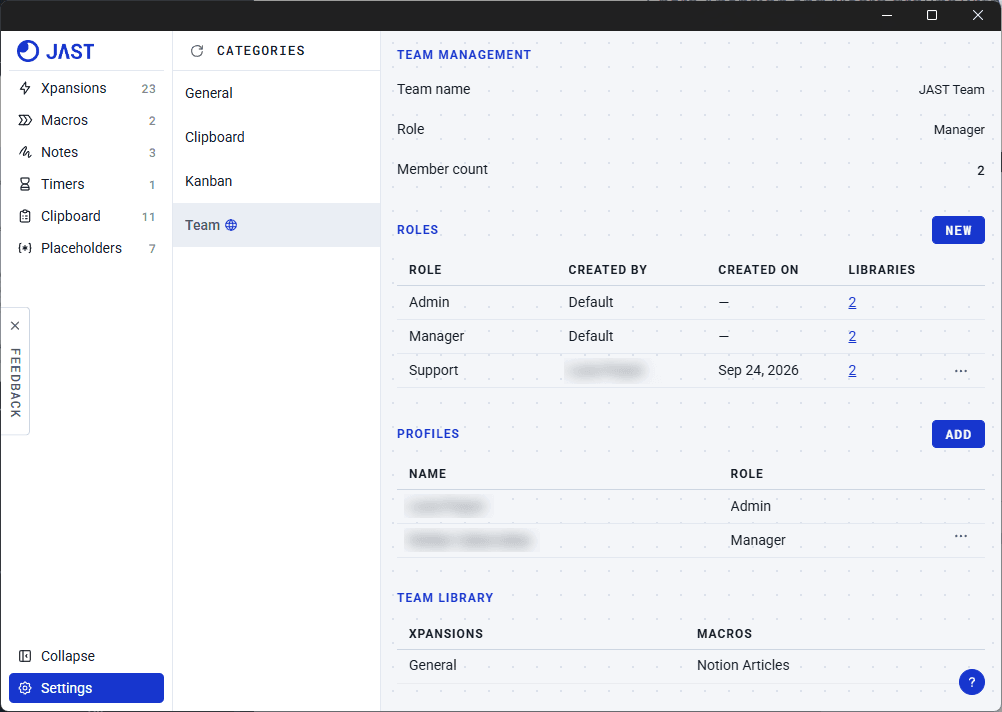
Create or join a team
Choose Create to start a team. You become its Admin.
To join a team, choose Join, type the Admin's email, and pick a role. An Admin or Manager approves your request under Profiles.
Add members
Admins and Managers can add people from Profiles > Add with an email and a role. They join as soon as they activate JAST, even if they don't have it yet. Someone who already uses JAST joins the next time they press Reload.
Roles
Admin can do everything and is whoever created the team. Managers share groups, edit the library, and manage members and roles. Staff use shared groups but can't edit them.
Create your own roles under Roles and choose which shared libraries each one receives. A role you create can use its groups but not edit them.
Share a group
On the Xpansions or Macros page, open a group's menu and choose Team. Shared groups show a share badge and use \\ as their default prefix. Choose Team again to make a group personal.
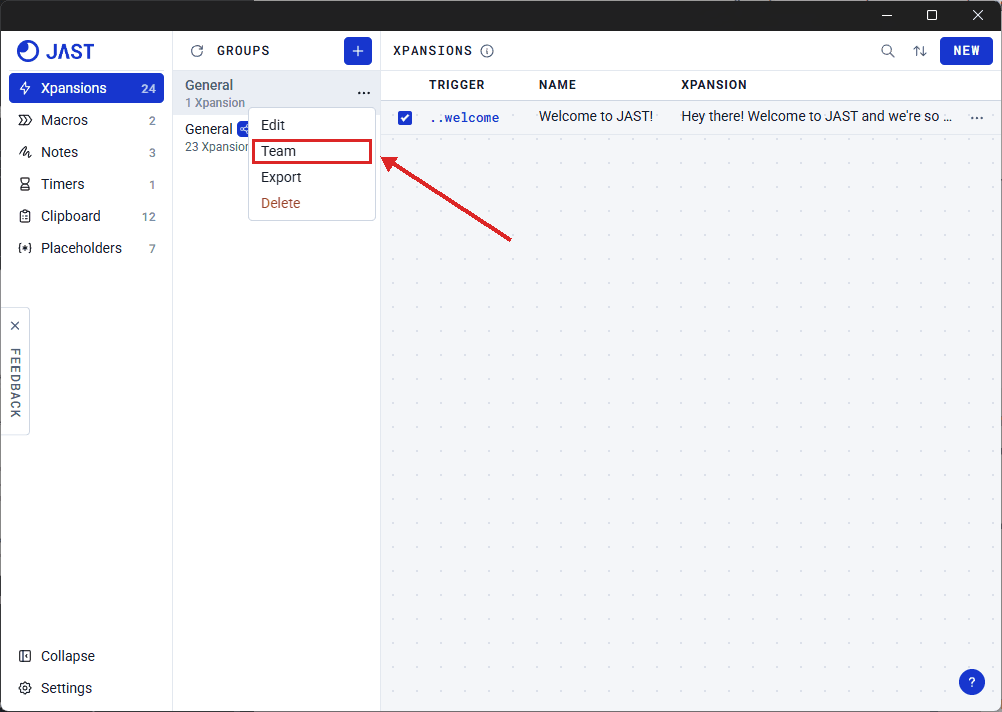
Stay in sync
JAST works offline and never syncs your team in the background. Press Reload beside Groups on the Xpansions page, or beside Categories in Settings, to get the latest shared library.
Your own edits to a shared group upload a few seconds after you make them.
Leave or delete a team
Members can leave from Settings > Team and rejoin later. Admins and Managers can delete the team from the Danger Zone. This removes its members, roles and shared library, and can't be undone.
Your question was not covered? Contact us